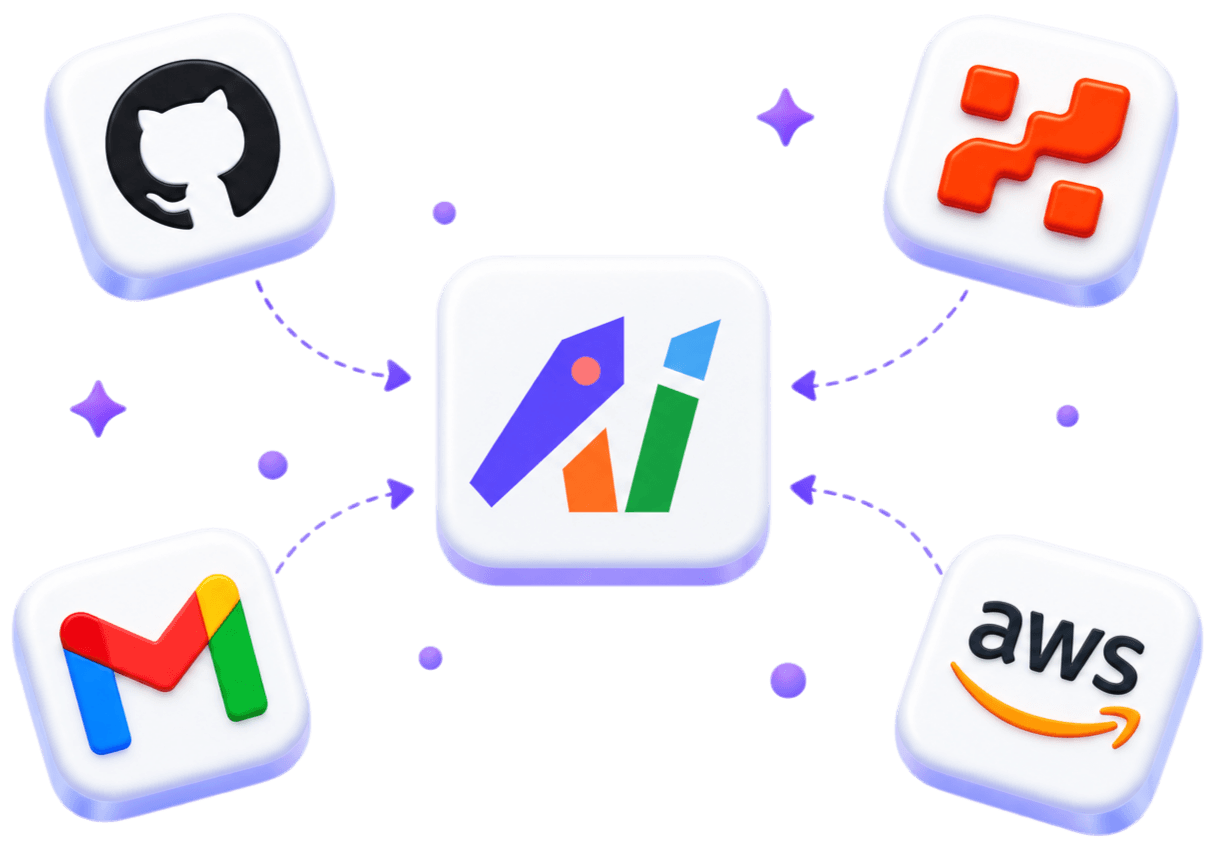
Connected context is project information from the tools and sources you already use — such as documents, code, conversations, files, and data — linked to a shared workspace so people and AI can work from the same sources. Drawsy AI brings authorized sources into the same visual workspace as your canvas, allowing AI and agents to work from project context instead of relying only on information pasted into a prompt.
Connected context means your workspace can reach outward to tools where work already lives, under permissions you control, and make relevant project information available beside diagrams, decisions, and plans. It is the Connect step in Draw → Connect → Understand → Create.
Connection is not bulk duplication. Useful systems link or fetch on demand, respect authorization scopes, and keep relationships explicit — for example a repository tied to a service on an architecture map, or a PRD linked to a milestone frame.
This page is about the concept: where project context comes from and how sources become usable in a shared workflow. For the product list of integrations, see Connectors.
Connected, imported, pasted, or unconnected
Not every way of getting information into an AI workflow is the same. The differences explain why connected context exists.
Connected — the source is linked and available within the project workflow, under authorization you control
Imported — a copy of information was brought somewhere else; the copy can drift from the system of record
Pasted — someone manually supplied a small piece of information for one prompt
Unconnected — the AI has no access to the source unless you recreate it by hand
What kinds of sources become connected context?
Project information usually lives across several systems. Grouping sources by role is clearer than a logo wall:
Code — GitHub repositories and related project code
Documents — Notion pages, Google Drive files, and similar specs
Communication — Slack threads, Gmail, and other conversation sources
Design — Figma files and related product visuals
Data — PostgreSQL, HydraDB, and other structured project data
See the current connector list
Drawsy AI documents the live connector set on the site — including GitHub, Notion, Slack, Google Drive, Gmail, Figma, PostgreSQL, HydraDB, and others. Availability can vary by plan. Browse the current list at https://app.drawsyai.com/#connectors.
How connected context becomes usable
A practical flow looks like this: choose a source, connect it, authorize access, select what belongs to the project, bring that into the workspace, then let humans and AI work from it. Connecting a source does not mean the AI should blindly use everything in it.
Connected sources are only useful when their information is relevant and appropriately scoped. See context engineering for how context can be designed.
Once supplied, that project information can enable context-aware AI workflows.
Connected context is not about giving AI access to everything. More sources do not automatically mean better context.
Good connected context still needs relevance, permissions, scope, organization, and freshness. Without those, connector sprawl adds noise, cost, and risk — which is why context engineering matters after sources are linked.
More sources
     ≠
Better context

Useful connected context also needs
→ relevance
→ permissions
→ scope
→ organization
→ freshness
Humans and AI share the same sources
Without connected context, people and models often work from different piles of information. Humans read Notion, Slack, and GitHub, then draw a diagram; AI receives a pasted summary that omits structure and decisions.
With connected context, the workspace becomes a shared project layer: the same authorized sources can inform human planning and AI questions or agents — instead of reconstructing context inside every prompt.
Without connected context

Human
 → reads Notion / Slack / GitHub
 → draws diagram
AI
 → gets a pasted summary


With connected context

             Shared project context
              /              \
             ↓                ↓
          Human               AI
             \                /
              ↓              ↓
                 Workspace
Example: planning a database migration
Ask only: “How should we migrate this database?” Without connected context, the model answers from the prompt and generic patterns.
With connected context, the same question can draw on schema and code in GitHub, requirements in Notion, team decisions in Slack, product flows in Figma, and the migration plan on the canvas — so analysis stays tied to the project’s actual artifacts.
Connected context should respect what you have authorized. A source being connected does not mean every piece of information should automatically become relevant to every task.
Useful boundaries include authorization, project scope, source relevance, freshness, and human verification of consequential answers. Disconnect sources when they no longer belong to the project.
Do not assume connectors imply perfect sync. Retrieval can miss files, mis-parse formats, or truncate large documents. Spot-check critical facts against the system of record.
Authorization — only what you grant
Project scope — not every account and folder by default
Relevance — select what belongs to the task
Freshness — know when snapshots may be stale
Verification — check important outputs against sources
How Drawsy AI relates
Drawsy AI connects project sources to the same canvas where teams think and plan. GitHub repositories, documents, conversations, files, and other authorized sources can become part of the project’s working context, while the canvas provides a visual layer for architecture, decisions, plans, and other work.
Start narrow at https://drawsyai.com — one repo or doc — then add sources as trust grows. Browse the live connector list at https://app.drawsyai.com/#connectors. Connector availability varies by plan; see Pricing for details.
Drawsy AI does not claim certifications it has not published. You control what you connect and can disconnect sources. Guest sessions may be ephemeral until you sign in.
Connected context describes where project information comes from.
Connected sources are only useful when their information is relevant and appropriately scoped — see context engineering.
Once supplied, that project information can enable context-aware AI workflows.
An AI workspace is where visual work, sources, and AI share context; an AI canvas holds the visual layer.
AI coding agents use connected project context for software tasks.
Frequently asked questions
Connected context is project information from the tools and sources you already use — documents, code, conversations, files, and data — linked to a shared workspace so people and AI can work from the same sources.
Without linked sources, AI often answers from the prompt and generic training knowledge. Connected context grounds responses in your project’s actual artifacts.
In Drawsy AI, documented sources include GitHub, Notion, Slack, Google Drive, Gmail, Figma, PostgreSQL, HydraDB, and others listed on the Connectors section of the site. Availability can vary by plan.
Not necessarily. Connected context describes how project information is linked and made available within a workflow. RAG is a retrieval technique that may be used to supply information to an AI system.
Not automatically. More sources without relevance, permissions, scope, organization, and freshness often create noise. Context engineering is how you design those boundaries.
No. Authorization, project scope, and task relevance still apply. A connected source is available to the workflow — it should not silently become unbounded input for every question.
Drawsy AI links authorized sources to the same canvas where teams plan and draw, so Q&A and agents can work from shared project context rather than only pasted prompts.