
How to Use a Local AI Coding Agent with an AI Canvas
Learn how local AI coding agents work with Codex CLI and OpenCode, why local project access matters, and how an AI canvas can turn code, context, and ideas into one visual workspace.
Reviewed by Drawsy engineering team
The code is connected. The rest of the work usually isn’t.
AI coding agents changed what “asking for help” looks like. Instead of copying a snippet from chat into an editor, you can point an agent at a project and ask it to understand the codebase, plan a change, edit files, run tools, and iterate when something breaks.
That part is getting better quickly.
What still feels messy for a lot of developers is everything around the code: requirements in one doc, architecture in someone’s head, research in browser tabs, tickets in another tool, and the agent conversation somewhere else entirely.
A useful pattern is emerging: keep a local AI coding agent close to your files, and put the thinking work on an AI canvas so context stays visible instead of buried in a thread.
This guide explains that workflow — what local coding agents are, how Codex CLI and OpenCode fit, where a canvas helps, and how Drawsy Companion bridges the two without forcing your whole project into a hosted IDE.
What is an AI coding agent?
An AI coding assistant usually helps you write or explain code.
An AI coding agent goes further. It can work through a multi-step development task using tools in its environment — not just generate a reply.
Ask something like “understand this project and add authentication,” and a capable agent may need to:
- Inspect the project structure
- Find the existing application architecture
- Read relevant files
- Decide where authentication belongs
- Create a plan
- Modify multiple files
- Run commands or tests
- Review the result and iterate on errors
Assistant vs agent
Terminal-based agents matter because they sit closer to where you already keep source control, builds, and local tooling.
The short distinction:
- Assistant: “Here is code you could write.”
- Agent: “I can work through the project and take the steps required to make the change.”
What is a local AI coding agent?
A local AI coding agent is a coding agent that operates through tools and files on your computer, rather than requiring the whole development loop to live inside a hosted browser environment.
“Local” is easy to over-claim, so be precise.
It does not automatically mean the AI model itself runs entirely offline on your machine.
- Your project files, Git repo, terminal, and agent CLI can stay on your machine.
- The agent may still call a hosted model or a local model, depending on how you configure it.
- Runs locally and the model runs locally are not the same claim.
Codex CLI and OpenCode
Two practical examples of this style of workflow are Codex CLI and OpenCode.
Codex is built to operate as a coding agent in development environments. OpenCode is an open-source AI coding agent available through terminal, desktop, and IDE-style experiences, with support for multiple providers and local models — useful when you care about how the agent environment is configured.
You do not need both.
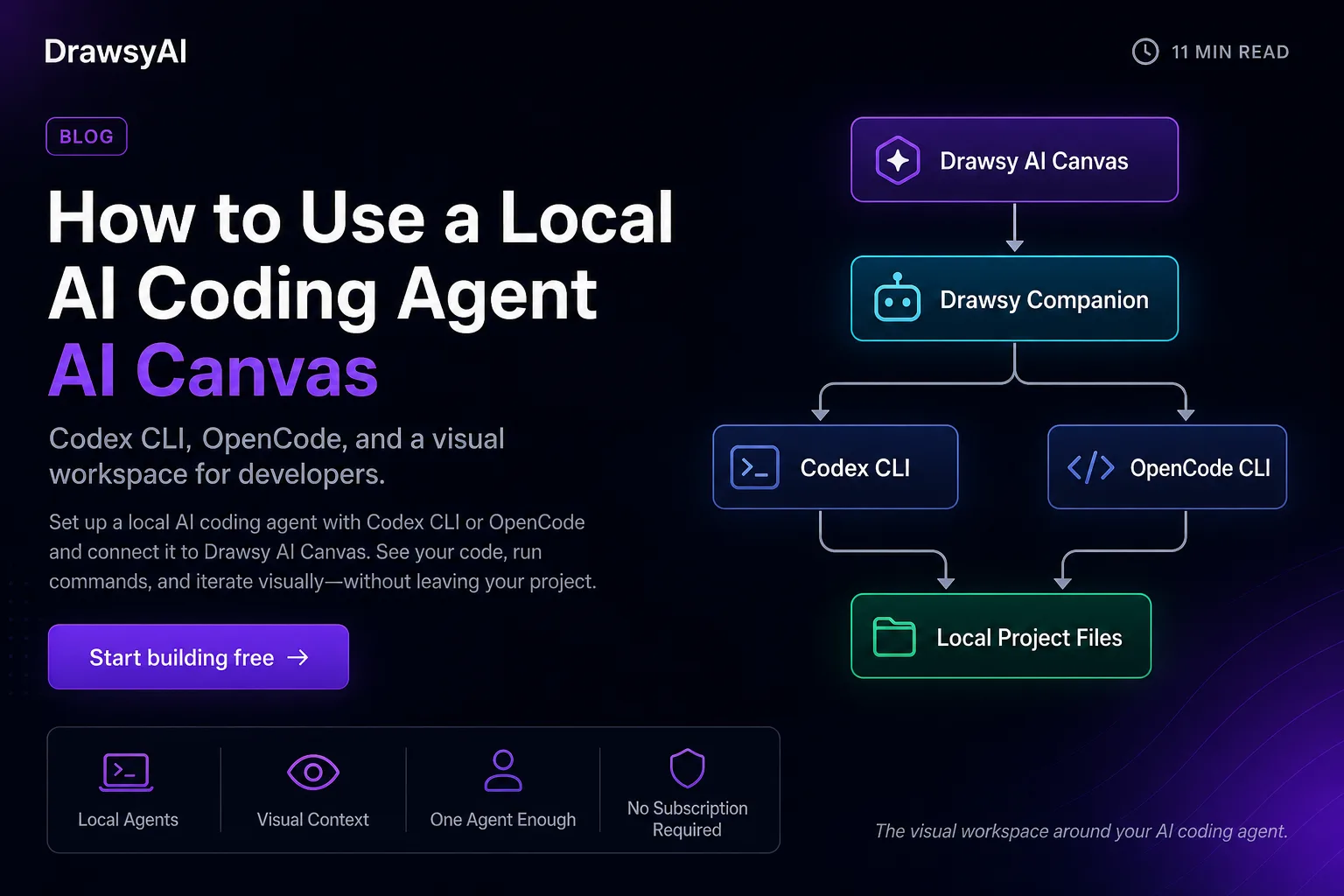
For a Drawsy Companion setup, the relationship looks like this:
One coding agent is enough — pick Codex or OpenCode.
- Install the Companion on your machine.
- Install either Codex CLI or OpenCode CLI.
- Connect a local project from the Drawsy canvas.
- One supported agent is enough.
Why put an AI coding agent on a canvas?
A terminal is excellent for execution. An editor is excellent for writing and reviewing code. Chat is excellent for short questions.
Software projects are rarely just code. They also include architecture, product requirements, user flows, research notes, screenshots, API docs, database models, bugs, tasks, and design decisions.
Trying to hold all of that in a linear conversation gets expensive — for you and for the agent.
An AI canvas changes the interaction model. Instead of another prompt stacked on another reply, you can keep the structure of the work visible.
Linear chat
Visual canvas
- The canvas holds context and structure.
- The coding agent can act on that context against a real project.
- This pattern is showing up beyond Drawsy — for example, Google’s canvas experiences for planning and coding and GitHub’s guidance on canvases for work that does not fit linear chat.
The problem with the traditional AI coding workflow
Picture an e-commerce feature. Feedback lives in Slack. Requirements sit in Notion. Design is in Figma. Code is in GitHub. The agent runs in a terminal. The architecture discussion happened in yet another chat window.
You become the integration layer.
That creates context switching: read a requirement, open the repo, re-explain the goal to the agent, paste a diagram somewhere else, run the agent, jump back to docs, return to the project.
The agent can be strong and the surrounding workflow can still be fragmented.
Slack
Feedback
Notion
Requirements
Figma
Design
GitHub
Code
Terminal
Agent
Chat
Discussion
You become the glue between every tool.
A visual AI development workflow
With a visual workspace, the same project can stay connected as one map instead of six tabs.
- You can see how requirements relate to architecture and implementation.
- The canvas does not replace the coding agent.
- It gives the agent — and you — a clearer workspace to operate from.
Where Drawsy Companion fits
This is the idea behind Drawsy Companion.
Companion is a lightweight local runtime that connects the Drawsy web canvas to tools already installed on your computer. It is the bridge — not the model, and not a replacement for Codex or OpenCode.
In practice: Drawsy stays in the browser for visual work. Companion runs on your machine. A supported local coding agent works with the project folder you choose.
That combination is the product claim worth being clear about: Drawsy is the visual workspace around your AI coding agent. Companion is how that workspace reaches your local environment.
One coding agent is enough — pick Codex or OpenCode.
What the local workflow looks like
The setup matches what we document on the Companion page:
- 1. Install Drawsy Companion for Windows, macOS, or Linux — see download.
- 2. Install one coding agent: Codex CLI or OpenCode CLI. One is enough.
- 3. Start Companion so it can run in the background.
- 4. Open Drawsy in the browser.
- 5. Connect your project and choose the available agent.
- 6. Start building with the canvas and local tools together.
What you can actually do with an AI canvas
The interesting part is not drawing boxes for their own sake. The canvas can represent the state of the work.
Start with a product idea — “build a marketplace for independent designers” — then grow connected context: personas, user journey, feature requirements, database model, API architecture, technical plan.
From there, a coding agent can work against the resulting context instead of treating each stage as an isolated chat.
Idea → research → architecture → plan → code becomes one continuous workspace.
AI canvas use cases for developers
A few patterns show up repeatedly:
1. System architecture
Map frontend, API, auth, database, and storage, then connect implementation details back to the actual project files the agent can touch.
2. Product planning
Turn customer feedback → problems → opportunities → features → priorities into a visual board. Useful when founders and PMs need the product story sitting next to implementation.
3. Research
Collect documentation, notes, links, screenshots, and alternatives into a research map instead of a bookmark pile.
4. Debugging
Keep the investigation visible as it develops, rather than trapping it inside one long chat transcript.
5. Technical design
Requirement → architecture → components → APIs → database → implementation gives humans and agents a shared picture of the system.
6. Working with AI agents
A more advanced workflow treats the canvas as a control surface for agentic work — research, planning, implementation, tests, review — without pretending the canvas replaces developers.
Does local mean my data never leaves my computer?
No — not automatically. Treat that claim carefully.
A modern AI development workflow usually has several pieces: your local project, Companion, the coding agent, the AI model or provider, and any external connectors.
A local-first setup can keep project files and the local bridge on your machine. Whether prompts or source code are sent to an external model depends on the agent, the provider, your configuration, and the action being performed.
OpenCode, for example, supports hosted providers and local models, so the data path depends on setup. Do not treat “local AI” as a synonym for “offline AI.”
Do I need a Drawsy subscription?
For Companion’s local workflow: you can use the Drawsy canvas with a local coding-agent setup without a Drawsy subscription.
That is not the same as “free AI coding with no account anywhere.”
You still need a supported coding agent and whatever model or provider access that agent requires. Companion connects Drawsy to that agent — it does not replace model access.
AI canvas vs AI chat
Chat is great for “explain this function.”
A canvas is better when the question is “here is the whole problem — how do these pieces connect?”
As agents take on larger workflows, the shift looks less like better prompts and more like better workspaces: conversation → workspace, prompt → task, chat history → persistent project context.
Google has described canvas as a place for plans and coding work; GitHub has made a similar point that some tasks need visualization and multi-source action rather than a long linear thread.
What the workspace around an agent should look like
Developers will keep using terminals, IDEs, Git, browsers, docs, issue trackers, and agents. The opportunity is making those systems share context instead of forcing everything through one interface.
An AI coding agent is powerful because it can act. A canvas is powerful because it can organize complexity.
Together, you get a visual workspace where humans can understand the work and agents can help execute it.
The interesting question is no longer only “can AI write code?” It already can. The better question is: what should the workspace around an AI coding agent look like?
Try the workflow
If you already use Codex CLI or OpenCode, you do not need to throw away your project, Git habits, or local tools.
Add the canvas layer. Think visually. Bring in context. Let the agent work against the project on your machine.
Open the canvas at https://drawsyai.com, or download Drawsy Companion and follow the setup steps. For related concepts, see AI coding agents and context engineering for AI agents.
Frequently asked questions
What is a local AI coding agent?
A local AI coding agent operates with a development environment and project resources available on your computer. The exact data flow still depends on the agent and model provider configuration.
What is an AI coding agent?
An AI coding agent can perform multi-step software tasks using tools such as file access, terminal commands, code editing, and project analysis — not only generate snippets in a chat reply.
What is Codex CLI?
Codex CLI is OpenAI’s command-line coding agent for working with software projects in a development environment.
What is OpenCode?
OpenCode is an open-source AI coding agent available through terminal, desktop, and IDE experiences, with support for multiple model providers and local models.
Can I use Codex or OpenCode with an AI canvas?
Yes. A local bridge such as Drawsy Companion can connect a web-based visual workspace to a coding agent running on your computer.
Do I need both Codex and OpenCode?
No. One supported coding agent is enough.
What is an AI canvas?
An AI canvas is a visual workspace for organizing ideas, information, plans, diagrams, and other project context while working with AI — especially useful for tasks that do not fit neatly into linear chat.
Is an AI canvas the same as an IDE?
No. An IDE is primarily for writing, running, and debugging code. An AI canvas sits at a broader level: product thinking, research, architecture, planning, and implementation context.
Is Drawsy Companion an AI model?
No. Drawsy Companion is the local bridge/runtime. It connects the Drawsy web canvas with supported local coding agents and local development resources.
Does Drawsy Companion install Codex or OpenCode?
No. You install your preferred coding agent separately. Companion connects Drawsy to the agent already on your machine.
Try the local agent + canvas workflow
Keep your project on your machine. Use Drawsy for visual context. Connect Codex CLI or OpenCode through Companion.
Related reading
- AI workspace thought leadershipFrom chatbots to context, canvases, and agents.
- Drawsy CompanionLocal bridge to Codex CLI, OpenCode, and project files.
- Companion setupInstall steps for Windows, macOS, and Linux.
- What Are AI Coding Agents?Assistants vs agents, tools, and project context.
- What Is an AI Canvas?Visual workspace for diagrams, plans, and AI context.
- Use casesWhere visual AI development shows up in practice.
- The AI Workspace Is Changing: From Chatbots to Context, Canvases, and AgentsAI is moving beyond chat. Explore how AI workspaces combine context, visual canvases, connected tools, and agents to turn scattered ideas into real work.
- Context Engineering for AI Agents: How to Give AI the Right InformationA practical guide to context engineering for AI agents — how to design instructions, knowledge, memory, tools, and feedback so agents make better decisions on real projects.