
From Architecture Diagram to Running Software
Explore how architecture, project context, AI coding agents, and a visual workspace can connect the path from system design to working software.
Reviewed by Drawsy engineering team
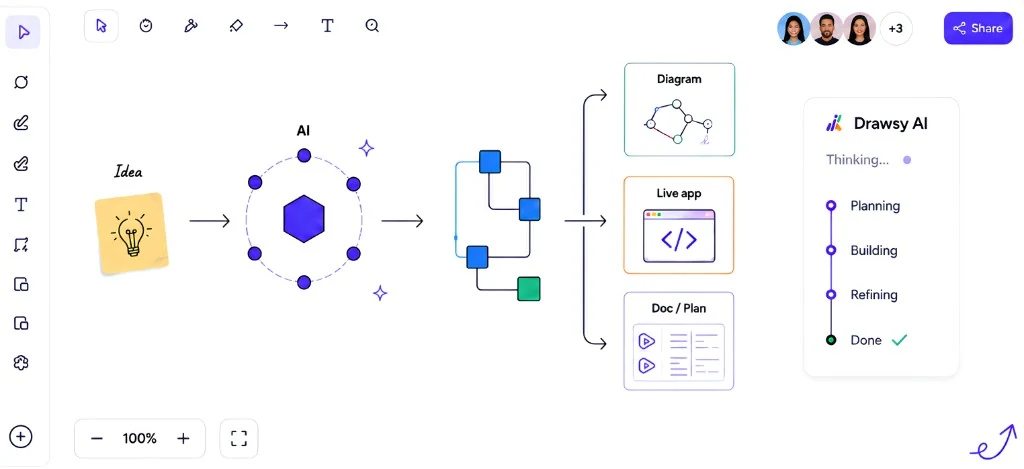
The gap between the diagram and the IDE
Most architecture work still ends the same way:
Architecture diagram
        ↓
Developer opens IDE
        ↓
Architecture lives somewhere else
        ↓
Code lives somewhere else
        ↓
AI agent sees mostly the repository
        ↓
Context gets reconstructed manually
We wanted to shorten that gap
The diagram was rarely useless. It was just disconnected. By the time someone asked a coding agent to implement a change, the architectural intent had to be rebuilt from memory, chats, and whatever files happened to be open.
We wanted a workflow where the map of the system could stay visible while the software got built — then come back onto the same board as a running preview so you can compare design with reality.
That is the Drawsy AI story below. The repository-side bridge for keeping architecture next to code is Why We Built DRAW.md. This article is what happens when you connect the full loop.
UNDERSTAND
    ↓
MAP
    ↓
DESIGN
    ↓
CONTEXTUALIZE
    ↓
AGENT
    ↓
BUILD
    ↓
RUN
    ↓
LIVE PREVIEW
1. Understand the system
Start with what already exists — not with a blank prompt to generate an app.
On an AI workspace for developers, that usually means bringing the project into view before anyone draws a new box:
Repository
+
Documentation
+
Existing architecture
+
Project decisions- What services already exist?
- Where are the hard boundaries?
- Which decisions are already locked in?
- What context is missing before a change is safe?
Understanding first — generating later
The goal in this step is not immediately to generate code. It is to understand the system well enough that later agent work has something real to stand on.
That selection problem — what information should be in scope, and what should stay out — is context engineering in practice.
2. Map the system on the canvas
Once you have sources, put the system where humans and agents can both see it: on an AI canvas.
Map services, dependencies, data flows, boundaries, components, and open questions. Leave the unknowns visible instead of pretending the diagram is finished.
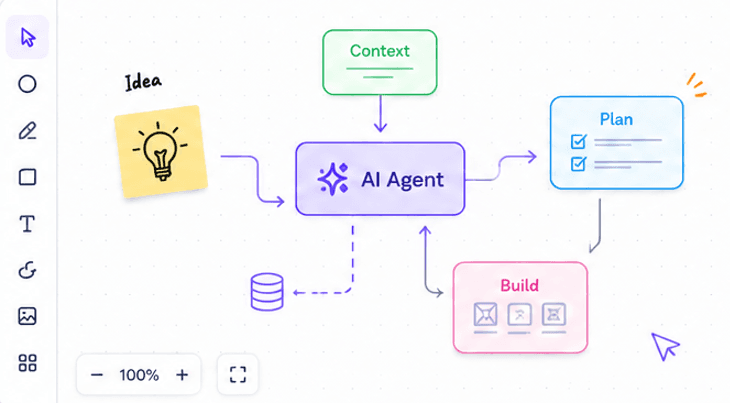
- Services and components as editable nodes
- Dependencies and data flows you can rearrange
- Boundaries and open questions kept on the same board
- The diagram isn’t a screenshot — it’s an editable representation of the project
3. Design what should change
Current-state maps are useful. Change still needs a proposed state.
Current system
      ↓
Identify constraint
      ↓
Explore alternatives
      ↓
Proposed architecture
AI explores. Humans decide.
AI can help explore options, surface missing edges, and structure incomplete designs. The developer or team remains responsible for the architectural decision.
That standard matters. On Drawsy AI, architecture work is assisted — not abdicated. The fuller product surface for this job is AI System Architecture Tool.
4. Give the agent the context behind the design
A diagram alone is still thin context. The useful unit is project context: the canvas plus the repository, requirements, architecture decisions, and relevant documents you authorize.
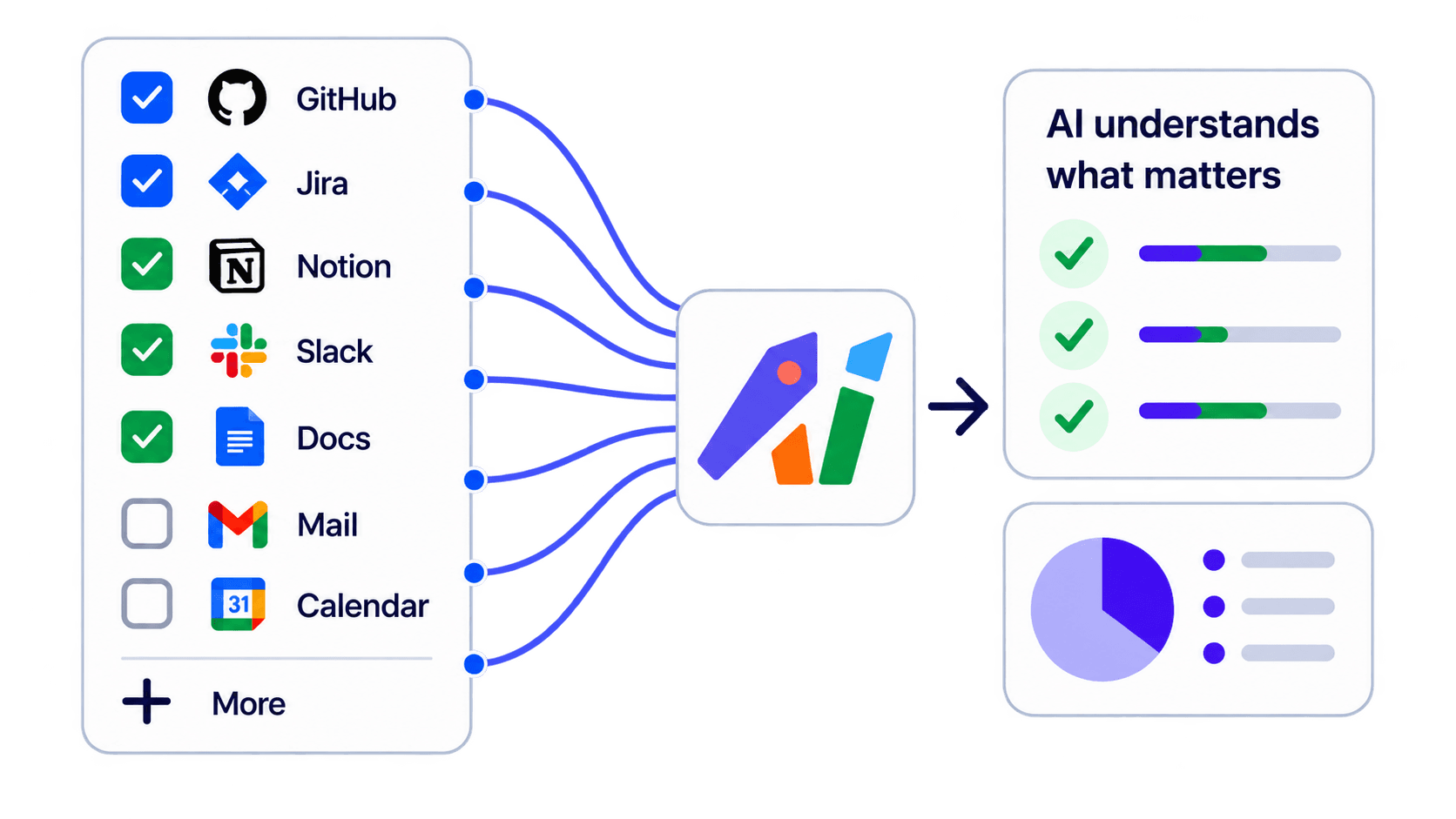
Canvas
+
Repository
+
Requirements
+
Architecture
+
Relevant documents
+
Decisions
        ↓
Project context
Frame the task inside the architecture
Instead of asking an agent to implement “add notifications,” the task can be framed inside the architecture and project context that explain where that functionality belongs — which service owns it, what it depends on, and what must not change.
That is the bridge to context engineering and connected context: selected sources become usable workspace context, not a dump of everything the model can reach.
Drawsy AI can provide selected project context to supported AI workflows. It does not claim to understand your entire codebase automatically.
5. Let the coding agent work from that context
With architecture and project context on the board, a coding agent can plan against something richer than a one-line prompt.
In practice that often means a local development workflow — for example Codex CLI or OpenCode — with Drawsy Companion bridging the Drawsy AI canvas to the agent on your machine. This article is the workflow, not a Companion landing page.
Architecture
      +
Context
      ↓
Coding agent
      ↓
Plan
      ↓
Read
      ↓
Change
      ↓
Verify
What the agent is doing
A capable agent may inspect structure, read relevant files, propose a plan, modify code, and verify with tools available in its environment. For the category definition, see What are AI coding agents?. For the local canvas + agent setup, see How to Use a Local AI Coding Agent with an AI Canvas.
6. Turn the architecture into implementation
This is where the workflow diverges from a normal architecture write-up.
Architecture decision
        ↓
Agent task
        ↓
Code changes
        ↓
Tests / verification
Incremental implementation — not diagram-to-app magic
The goal isn’t “generate an entire application from a diagram.”
Architecture becomes one of the artifacts that informs incremental implementation. Architecture and project context can inform coding-agent workflows that produce and iterate on code — they do not automatically turn diagrams into production software.
That distinction is the difference between a credible developer tool and a brochure claim.
7. Run the software
Implementation without a running surface still leaves a gap. The Drawsy AI loop continues:
Code
 ↓
Run project
 ↓
Expose running application
 ↓
Bring preview into canvas
Preview as a canvas element
A running project can be surfaced as an interactive canvas element — so the preview sits beside the architecture that was supposed to describe it, not in a separate browser tab you forget to reconcile.
8. Compare the architecture with what you built
This is the payoff. The canvas becomes a feedback surface:
Architecture
      ↕
Implementation
      ↕
Live software- Does the implementation match the design?
- What changed while we built?
- What dependency is missing?
- Where did the architecture evolve?
- What should be documented back into the project — including DRAW.md?
Design meeting reality
When architecture, implementation, and live software share one board, you stop treating the diagram as a kickoff artifact. It becomes part of an ongoing visual development workflow — closer to architecture-driven development without pretending the diagram is the product.
What we learned building this workflow
A few lessons from building toward this loop:
- Architecture is context, not decoration. If the map never reaches the agent or the preview, it was mostly theater.
- More context isn’t automatically better. Irrelevant or stale sources make agent work worse. Selection matters — see context engineering.
- AI needs boundaries. Scope the workspace, the files, and the decision the human still owns.
- The diagram shouldn’t be disconnected from implementation. That is why DRAW.md and the canvas exist as a bridge, not a gallery.
- Agents still need verification. Plan → change → test remains the loop; the canvas doesn’t remove it.
- The human remains responsible for architectural decisions. AI can explore; teams decide.
What this workflow is not claiming
A few lines we refuse to blur:
- Drawsy AI does not “understand your entire codebase” by default — it works from selected project context you bring into the workspace.
- AI does not automatically turn diagrams into production software.
- Architecture still complements Git, docs, and your IDE — it does not replace them.
Where to go next
If you want the architecture product surface: AI System Architecture Tool.
If you want the developer workspace story: AI Workspace for Developers.
If you want the agent category: AI Coding Agents.
If you want the repository bridge: Why We Built DRAW.md.
If you want to try the loop: open the canvas and start from a real project, not a blank pitch deck.
Frequently asked questions
Can an architecture diagram become working software?
Not by magic. On Drawsy AI, architecture and project context can inform coding-agent workflows that produce and iterate on implementation — then a live preview can sit back on the canvas so you compare design with reality.
Does Drawsy AI generate entire apps from diagrams?
No. The credible path is incremental: understand, map, design, contextualize, then let agents implement changes with verification. Architecture informs the work; it does not replace engineering judgment.
How do AI coding agents fit this workflow?
Agents plan, read, change, and verify against selected project context — including architecture on the canvas. Local agents such as Codex CLI or OpenCode can connect through Drawsy Companion.
What is live preview on the canvas?
After you run the project, a running application can be brought onto the Drawsy AI canvas as an interactive element so architecture and live software sit side by side.
How is this different from the DRAW.md article?
DRAW.md explains the repository ↔ canvas bridge for keeping architecture close to the code. This article walks the full Understand → Live preview workflow those pieces enable.
Try the architecture → software loop
Map a real system on Drawsy AI, give agents selected project context, and bring a running preview back onto the canvas.
Related reading
- AI System Architecture ToolArchitecture with project context, agents, and previews.
- AI Workspace for DevelopersRepository context, Companion, and coding agents on one canvas.
- AI Coding AgentsHow coding agents plan, use tools, and verify work.
- Context EngineeringHow to select and structure useful agent context.
- Connected ContextWhere project sources come from on the workspace.
- AI CanvasThe visual surface for maps, decisions, and previews.
- Why We Built DRAW.mdKeeping architecture close to the code.
- Why We Built DRAW.md: Keeping Architecture Close to the CodeHow Drawsy AI uses DRAW.md to keep architecture next to the repository — a canonical project document that can render into an editable canvas and stay available to AI coding agents.
- How to Use a Local AI Coding Agent with an AI CanvasLearn how local AI coding agents work with Codex CLI and OpenCode, why local project access matters, and how an AI canvas can turn code, context, and ideas into one visual workspace.